 QubeSurvey
Testing a script
Start from the exact version you want to review. A ticket attached to an older version should be reproduced on that version before comparing a proposed fix.
Run the questionnaire
Open Scripts, choose the Script and a saved version, then choose Test. Answer questions and test the routes you want to verify. Check question text, option labels, validation, loops and routing.
The source and inspection tools help a scripter understand the current state. Other reviewers can concentrate on the interview itself. Always use invented test answers; do not paste respondent records or confidential fieldwork material into the debugger, tickets, or screenshots.
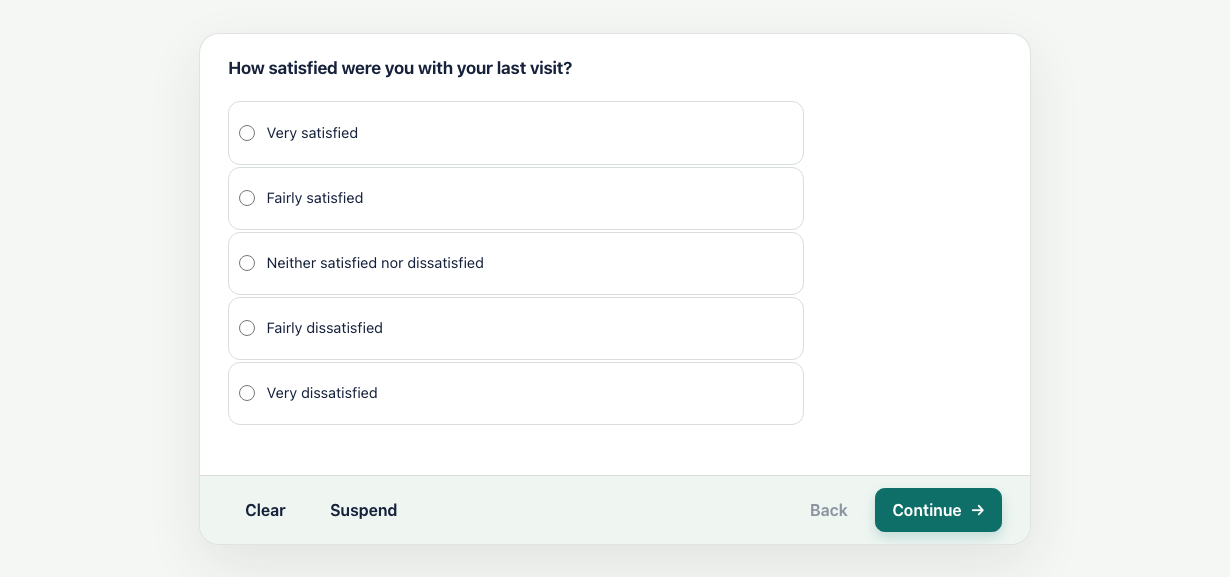
An invented visitor survey running in the real questionnaire renderer. Check the question wording and options, select an answer, then use Continue to check the next step of the route.
Record a problem
Create a ticket directly from the test screen while the problem is visible. QubeSurvey links it to the tested version and captures the recorded interview history when the runtime is available. A source-load failure or a general ticket may have no replayable journey. Describe what happened, what you expected and the route or conditions needed to reproduce it.
For Odin and QubeScript, you can also open a ticket’s test screen, reach a page, name the route and choose Save test journey. Open that journey from the ticket to restore its saved steps on the matching version, then continue testing.
Check a proposed fix
Open the ticket and use its reproduction or candidate-testing controls. Compare the source changes and replay the captured journey when available. Check where the replay stopped, then answer through the affected route and nearby routes. Use Back to check corrections where relevant. If there is no usable replay, start the route again with invented answers.
If the fix is correct, resolve the ticket. If it is not, explain the remaining problem and reopen it. See Tickets and proposed fixes.
Keep the original evidence
Uploading a new version does not erase the earlier version or its tickets. Keep the original report intact so reviewers can understand both the defect and the reason for the correction.